
PyQt4 GUI tutorial
In this tutorial we will teach you how to create a graphical application with PyQT4. This will work on any platform that supports PyQT4 including Windows, Linux, UNIX, Android, OS X and iOS.
PyQt4 installation
PyQt does not include Qt itself, so you may need to install Qt separately. The homepage for PyQt is https://www.riverbankcomputing.com/software/pyqt/.You will need to install some packages:
sudo pip install pyqt
sudo apt-get install qt4-designer
sudo apt-get install pyqt4-dev-tools
sudo apt-get install python-kde4If python-kde4 cannot be found update your repository to find it. If you are on Ubuntu use this link.
Building a PyQT4 GUI
Now we can use the QT Designer application. It saves us from writing tons of layout code that you may be used to when writing HTML. Start qt4-designer from your applications menu. The QT Designer application will appear. QT Designer
Press Dialog without Buttons and press Create. You can now drag any component from the widget box to the form. Simple drag and drop. We added a button, label and a pixmap. (I took a random image from the web for the pixmap)
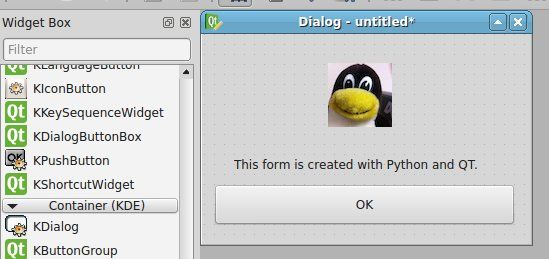 QT KDE Dialog
Our window looks like the image above. Press Form > Viewcode. We will get a popup box with the form code in… C++! That is great, but we want the Python code. Press File > Save as > form.ui.
The file test.ui contains your form described in XML format. (You can view it in a text editor) Open a console and type:
pyuic4 form.ui > form.pyRunning the file does nothing. Create a new file called gui.py
Paste the code below:
import sys
from PyQt4 import QtCore, QtGui
from form import Ui_Dialog
class MyDialog(QtGui.QDialog):
    def __init__(self, parent=None):
        QtGui.QWidget.__init__(self, parent)
        self.ui = Ui_Dialog()
        self.ui.setupUi(self)
if __name__ == "__main__":
    app = QtGui.QApplication(sys.argv)
    myapp = MyDialog()
    myapp.show()
    sys.exit(app.exec_())
Run with:
python gui.pyThis will open our graphical interface. Pressing on the OK button will simply close the application.
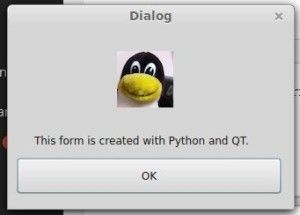 PyQt Window with QButton
We want to add some action when the OK button is pressed. We add these three lines to the code:
self.ui.pushButton.clicked.connect(self.OK)
def OK(self):
    print 'OK pressed.'
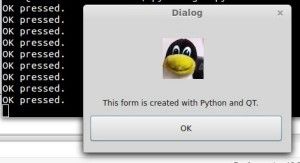 pyqt4 app example
Download PyQT4 Examples (Bulk Collection)
Create a webbrowser with PyQT4 or PyQt4 Overview