Qt4 buttons
 PyQt4 button example
PyQt4 (Qt4) supports buttons through the QPushButton widget.
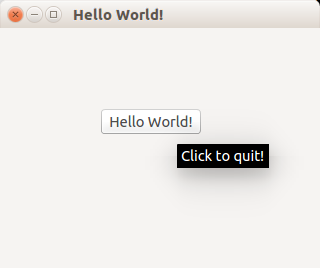
We extend the code to display a button in the center of the window.
The button will show a tooltip if hovered and when pressed will close the program.
PyQt4 button example
The example below adds a button to a PyQt4 window.#! /usr/bin/env python
# -*- coding: utf-8 -*-
#
import sys
from PyQt4.QtGui import *
# Create an PyQT4 application object.
a = QApplication(sys.argv)
# The QWidget widget is the base class of all user interface objects in PyQt4.
w = QWidget()
# Set window size.
w.resize(320, 240)
# Set window title
w.setWindowTitle("Hello World!")
# Add a button
btn = QPushButton('Hello World!', w)
btn.setToolTip('Click to quit!')
btn.clicked.connect(exit)
btn.resize(btn.sizeHint())
btn.move(100, 80)
# Show window
w.show()
sys.exit(a.exec_())
PyQt4 signals and slots
A button click should do something. To do so, you must use signals and slots.When a user clicks a button or types text into a box, the widget sends out a signal. You can connect that signal to a slot function, which receives the event and runs your code.
import sys
from PyQt4.QtCore import pyqtSlot
from PyQt4.QtGui import *
# create our window
app = QApplication(sys.argv)
w = QWidget()
w.setWindowTitle('Button click example @pythonspot.com')
# Create a button in the window
btn = QPushButton('Click me', w)
# Create the actions
@pyqtSlot()
def on_click():
    print('clicked')
@pyqtSlot()
def on_press():
    print('pressed')
@pyqtSlot()
def on_release():
    print('released')
# connect the signals to the slots
btn.clicked.connect(on_click)
btn.pressed.connect(on_press)
btn.released.connect(on_release)
# Show the window and run the app
w.show()
app.exec_()
Download PyQT Code (Bulk Collection)