
PyQt5 messagebox
In this article you will learn how to create a PyQt5 messagebox:
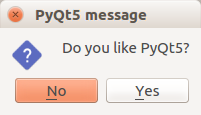
To show a messagebox we need to import QMessageBox.
from PyQt5.QtWidgets import QApplication, QWidget, QPushButton, QMessageBoxWe use the method QMessageBox.question() to display the messagebox.
PyQt5 messagebox code
Copy the code below to display a messagebox.
import sys
from PyQt5.QtWidgets import QApplication, QWidget, QPushButton, QMessageBox
from PyQt5.QtGui import QIcon
from PyQt5.QtCore import pyqtSlot
class App(QWidget):
def __init__(self):
        super().__init__()
        self.title = 'PyQt5 messagebox - pythonspot.com'
        self.left = 10
        self.top = 10
        self.width = 320
        self.height = 200
        self.initUI()

    def initUI(self):
        self.setWindowTitle(self.title)
        self.setGeometry(self.left, self.top, self.width, self.height)
buttonReply = QMessageBox.question(self, 'PyQt5 message', "Do you like PyQt5?", QMessageBox.Yes | QMessageBox.No, QMessageBox.No)
        if buttonReply == QMessageBox.Yes:
            print('Yes clicked.')
        else:
            print('No clicked.')
self.show()

if __name__ == '__main__':
    app = QApplication(sys.argv)
    ex = App()
    sys.exit(app.exec_())
More buttons for a messagebox Take into account we use QMessageBox.Yes and QMessageBox.No. We can easily add other options:
buttonReply = QMessageBox.question(self, 'PyQt5 message', "Do you want to save?", QMessageBox.Yes | QMessageBox.No | QMessageBox.Cancel, QMessageBox.Cancel)
        print(int(buttonReply))
        if buttonReply == QMessageBox.Yes:
            print('Yes clicked.')
        if buttonReply == QMessageBox.No:
            print('No clicked.')
        if buttonReply == QMessageBox.Cancel:
            print('Cancel')
The available buttons are:
| Overview | ||
| QMessageBox.Cancel | QMessageBox.Ok | QMessageBox.Help |
| QMessageBox.Open | QMessageBox.Save | QMessageBox.SaveAll |
| QMessageBox.Discard | QMessageBox.Close | QMessageBox.Apply | QMessageBox.Reset | QMessageBox.Yes | QMessageBox.YesToAll |
| QMessageBox.No | QMessageBox.NoToAll | QMessageBox.NoButton |
| QMessageBox.RestoreDefaults | QMessageBox.Abort | QMessageBox.Retry |
| QMessageBox.Ignore |