
PyQt5 QBoxLayout
An instance of the QBoxLayout divides the given space into boxes, where each box is totally filled with one exact widget. It can add widgets in vertical or horizontal direction, where the choice of vertical or horizontal depends on type of class the object is instanced from.
The class QVBoxLayout adds widgets in vertical direction while the QHBoxLayout adds widgets in horizontal direction.
QVboxLayout - Vertical layout
We can add widgets in vertical direction using the QVBoxLayout class. The QVBoxLayout class inherits from the QBoxLayout class.
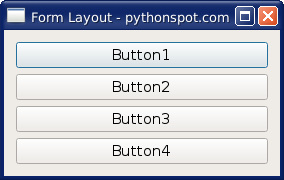
In this example we add widgets (buttons) to a QVBoxLayout instance and we add the instance to the window.
from PyQt5.QtWidgets import (QApplication, QComboBox, QDialog,
QDialogButtonBox, QFormLayout, QGridLayout, QGroupBox, QHBoxLayout,
QLabel, QLineEdit, QMenu, QMenuBar, QPushButton, QSpinBox, QTextEdit,
QVBoxLayout)
import sys
class Dialog(QDialog):
    NumGridRows = 3
    NumButtons = 4

    def __init__(self):
        super(Dialog, self).__init__()

        b1=QPushButton("Button1")
        b2=QPushButton("Button2")
        b3=QPushButton("Button3")
        b4=QPushButton("Button4")

        mainLayout = QVBoxLayout()
        mainLayout.addWidget(b1)
        mainLayout.addWidget(b2)
        mainLayout.addWidget(b3)
        mainLayout.addWidget(b4)

        self.setLayout(mainLayout)
        self.setWindowTitle("Form Layout - pythonspot.com")
if __name__ == '__main__':
    app = QApplication(sys.argv)
    dialog = Dialog()
    sys.exit(dialog.exec_())