
PyQt5 textbox example
In this article you will learn how to use a textbox in PyQt5. The widget is called QLineEdit and has the methods setText() to set the textbox value and text() to get the value.
We can set the size of the textbox using the resize(width,height) method. The position can be set using the move(x,y) method or using a grid layout.
Related course:
Practice Python with interactive exercises
PyQt5 textbox Creation of the textbox is fairly straightforward:
self.textbox = QLineEdit(self)
self.textbox.move(20, 20)
self.textbox.resize(280,40)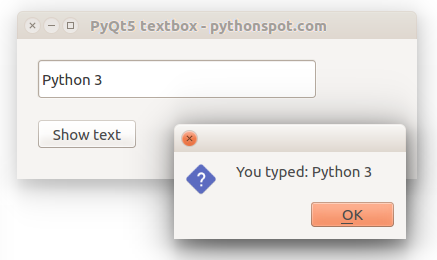
PyQt5 textbox example
The example below creates a window with a textbox.
import sys
from PyQt5.QtWidgets import QMainWindow, QApplication, QWidget, QPushButton, QAction, QLineEdit, QMessageBox
from PyQt5.QtGui import QIcon
from PyQt5.QtCore import pyqtSlot
class App(QMainWindow):
def __init__(self):
        super().__init__()
        self.title = 'PyQt5 textbox - pythonspot.com'
        self.left = 10
        self.top = 10
        self.width = 400
        self.height = 140
        self.initUI()

    def initUI(self):
        self.setWindowTitle(self.title)
        self.setGeometry(self.left, self.top, self.width, self.height)

        # Create textbox
        self.textbox = QLineEdit(self)
        self.textbox.move(20, 20)
        self.textbox.resize(280,40)

        # Create a button in the window
        self.button = QPushButton('Show text', self)
        self.button.move(20,80)

        # connect button to function on_click
        self.button.clicked.connect(self.on_click)
        self.show()

    @pyqtSlot()
    def on_click(self):
        textboxValue = self.textbox.text()
        QMessageBox.question(self, 'Message - pythonspot.com', "You typed: " + textboxValue, QMessageBox.Ok, QMessageBox.Ok)
        self.textbox.setText("")
if __name__ == '__main__':
    app = QApplication(sys.argv)
    ex = App()
    sys.exit(app.exec_())