python logo


Tag: tabs

wx python

While we did not heavily use object orientation for the wxPython series yet for simplicity reasons, we cannot go around it. In this tutorial you will learn how to create a tab interface with wxPython.

Related course: Creating GUI Applications with wxPython

The class Mainframe creates the frame as we did in the previous examples. The other classes are the contents of the tabs. We create a panel and notebook (tab holder) in the main frame. Then we create tab objects :

tab1 = TabOne(nb)
tab2 = TabTwo(nb)
...

which we attach to the tab holder using:

nb.AddPage(tab1, "Tab 1")
nb.AddPage(tab2, "Tab 2")
...

Full code:

import wx

# Define the tab content as classes:
class TabOne(wx.Panel):
def __init__(self, parent):
wx.Panel.__init__(self, parent)
t = wx.StaticText(self, -1, "This is the first tab", (20,20))

class TabTwo(wx.Panel):
def __init__(self, parent):
wx.Panel.__init__(self, parent)
t = wx.StaticText(self, -1, "This is the second tab", (20,20))

class TabThree(wx.Panel):
def __init__(self, parent):
wx.Panel.__init__(self, parent)
t = wx.StaticText(self, -1, "This is the third tab", (20,20))

class TabFour(wx.Panel):
def __init__(self, parent):
wx.Panel.__init__(self, parent)
t = wx.StaticText(self, -1, "This is the last tab", (20,20))


class MainFrame(wx.Frame):
def __init__(self):
wx.Frame.__init__(self, None, title="wxPython tabs example @pythonspot.com")

# Create a panel and notebook (tabs holder)
p = wx.Panel(self)
nb = wx.Notebook(p)

# Create the tab windows
tab1 = TabOne(nb)
tab2 = TabTwo(nb)
tab3 = TabThree(nb)
tab4 = TabFour(nb)

# Add the windows to tabs and name them.
nb.AddPage(tab1, "Tab 1")
nb.AddPage(tab2, "Tab 2")
nb.AddPage(tab3, "Tab 3")
nb.AddPage(tab4, "Tab 4")

# Set noteboook in a sizer to create the layout
sizer = wx.BoxSizer()
sizer.Add(nb, 1, wx.EXPAND)
p.SetSizer(sizer)


if __name__ == "__main__":
app = wx.App()
MainFrame().Show()
app.MainLoop()

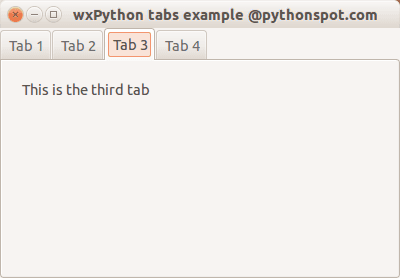
Output:

wxTabs wxTabs

Related course: Creating GUI Applications with wxPython

pyqt tabs

Tabs are very useful in graphical applications. They appear in webbrowsers, text editors and any other apps.  To create a tabbed window, you need to call the  QTabWidget()  function.  Every tab is a QWidget() which you have seen before.  You can connect the QWidgets with the QTabWidget with the function:

tabs.addTab(tab1,"Tab 1")

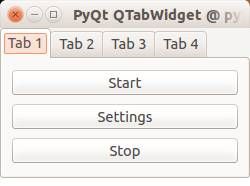
where the first parameter is the tab object and the second the name that appears on the screen. We added some buttons to the first tab (QWidget).

Related course:

Example code:

from PyQt4 import QtGui
from PyQt4 import QtCore
import sys

def main():

app = QtGui.QApplication(sys.argv)
tabs = QtGui.QTabWidget()

# Create tabs
tab1 = QtGui.QWidget()
tab2 = QtGui.QWidget()
tab3 = QtGui.QWidget()
tab4 = QtGui.QWidget()

# Resize width and height
tabs.resize(250, 150)

# Set layout of first tab
vBoxlayout = QtGui.QVBoxLayout()
pushButton1 = QtGui.QPushButton("Start")
pushButton2 = QtGui.QPushButton("Settings")
pushButton3 = QtGui.QPushButton("Stop")
vBoxlayout.addWidget(pushButton1)
vBoxlayout.addWidget(pushButton2)
vBoxlayout.addWidget(pushButton3)
tab1.setLayout(vBoxlayout)

# Add tabs
tabs.addTab(tab1,"Tab 1")
tabs.addTab(tab2,"Tab 2")
tabs.addTab(tab3,"Tab 3")
tabs.addTab(tab4,"Tab 4")

# Set title and show
tabs.setWindowTitle('PyQt QTabWidget @ pythonspot.com')
tabs.show()

sys.exit(app.exec_())

if __name__ == '__main__':
main()

Result:

PyQT Tabs PyQT Tabs

Download PyQT Code (Bulk Collection)