
wxPython dialogs
To display a dialog with wxPython requires only a few lines of code. We will demonstrate that below:
Information dialog An information dialog can be shown with one line of code:
import wx
app = wx.App()
wx.MessageBox('Pythonspot wxWidgets demo', 'Info', wx.OK | wx.ICON_INFORMATION)
The first parameter is the actual text to display. The second is the title and final parameter tells wx to show the information icon and button.
Output:
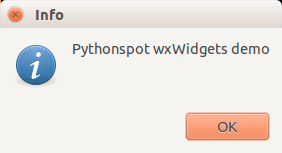 wx dialog
More dialogs: Warning dialog, Error dialog and default dialog By modifying the parameters you can easily create other types of dailogs. An example below:
import wx
app = wx.App()
# simple dialog
wx.MessageBox('A dialog', 'Title', wx.OK)
# warning dialog
wx.MessageBox('Operation could not be completed', 'Warning', wx.OK | wx.ICON_WARNING)
# error dialog
wx.MessageBox('Operation could not be completed', 'Error', wx.OK | wx.ICON_ERROR)
Output (only one of the dialogs):
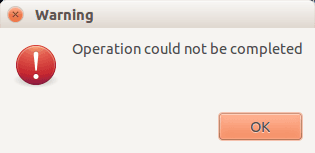 wxDialog
Question dialog Wx can be used to create a question dialog (yes/no). Example code:
import wx
app = wx.App()
dlg = wx.MessageDialog(None, "Do you want to update?",'Updater',wx.YES_NO | wx.ICON_QUESTION)
result = dlg.ShowModal()
if result == wx.ID_YES:
    print "Yes pressed"
else:
    print "No pressed"
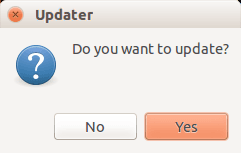 wxDialog