
wxPython file dialog
Nearly every desktop application that can open one or more files has a file dialog.
An open file dialog may seem like a very complicated window to create: it contains buttons, locations, labels and many more widgets. Moreover, the appearance of this open file dialog looks different on every platform: Mac OS, Windows and so on.
The wxPython module comes with open file dialogs, which can be created with a few functions calls.
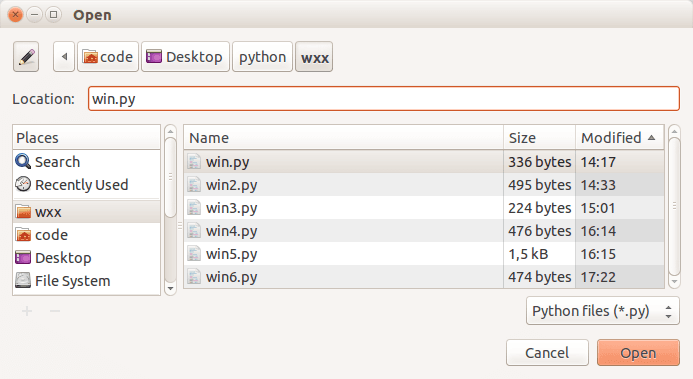 wxPython Open File Dialog
wxPython file dialog
The example below creates a file dialog with a native appearance using wxPython:#!/usr/bin/python
import wx
def onButton(event):
print "Button pressed."
app = wx.App()
frame = wx.Frame(None, -1, 'win.py')
frame.SetDimensions(0,0,200,50)
# Create open file dialog
openFileDialog = wx.FileDialog(frame, "Open", "", "",
"Python files (*.py)|*.py",
wx.FD_OPEN | wx.FD_FILE_MUST_EXIST)
openFileDialog.ShowModal()
print(openFileDialog.GetPath())
openFileDialog.Destroy()
wx.FileDialog(frame, "Open", "", "","Python files (*.py)|*.py",wx.FD_OPEN | wx.FD_FILE_MUST_EXIST)(no default dir or default file is specified).
The method showModal() displays the window:
openFileDialog.ShowModal()The command openFileDialog.GetPath() returns the full path to the file if one is selected.