
PyQt5 image
PyQt5 (and Qt) support images by default. In this article we'll show you how to add an image to a window. An image can be loaded using the QPixmap class.
PyQt5 image introduction Adding an image to a PyQt5 window is as simple as creating a label and adding an image to that label.
label = QLabel(self)
pixmap = QPixmap('image.jpeg')
label.setPixmap(pixmap)
# Optional, resize window to image size
self.resize(pixmap.width(),pixmap.height())
These are the required imports:
from PyQt5.QtWidgets import QApplication, QWidget, QLabel
from PyQt5.QtGui import QIcon, QPixmap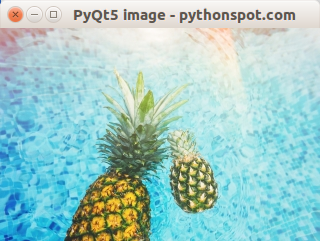
PyQt5 load image (QPixmap)
Copy the code below and run it. The image should be in the same directory as your program.
import sys
from PyQt5.QtWidgets import QApplication, QWidget, QLabel
from PyQt5.QtGui import QIcon, QPixmap
class App(QWidget):
def __init__(self):
        super().__init__()
        self.title = 'PyQt5 image - pythonspot.com'
        self.left = 10
        self.top = 10
        self.width = 640
        self.height = 480
        self.initUI()

    def initUI(self):
        self.setWindowTitle(self.title)
        self.setGeometry(self.left, self.top, self.width, self.height)

        # Create widget
        label = QLabel(self)
        pixmap = QPixmap('image.jpeg')
        label.setPixmap(pixmap)
        self.resize(pixmap.width(),pixmap.height())

        self.show()
if __name__ == '__main__':
    app = QApplication(sys.argv)
    ex = App()
    sys.exit(app.exec_())