
PyQt5 pixels
You can paint in a PyQt5 window using the QPainter widget. This widget supports adding pixels (dots) inside of the widget, unlike the other widgets. In this article we'll explain how to use the QPainter widget with Python.
To use the widget in Qt5 we import PyQt5.QtGui. This also contains other classes like QPen and QColor.
QPainter Widget Example We set the window background using:
# Set window background color
self.setAutoFillBackground(True)
p = self.palette()
p.setColor(self.backgroundRole(), Qt.white)
self.setPalette(p)Pixels are added using the drawPoint(x, y) method.
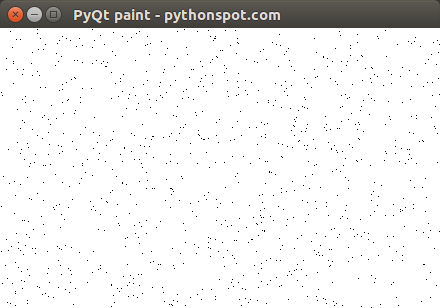 PyQt5 qpainter example
PyQt5 QPainter example The example below paints pixels in the QPainter widget:
import sys
from PyQt5.QtWidgets import QApplication, QWidget, QMainWindow, QLabel
from PyQt5.QtGui import QPainter, QColor, QPen
from PyQt5.QtGui import QIcon
from PyQt5.QtCore import Qt
import random
class App(QMainWindow):
def __init__(self):
        super().__init__()
        self.title = 'PyQt paint - pythonspot.com'
        self.left = 10
        self.top = 10
        self.width = 440
        self.height = 280
        self.initUI()
def initUI(self):
        self.setWindowTitle(self.title)
        self.setGeometry(self.left, self.top, self.width, self.height)
# Set window background color
        self.setAutoFillBackground(True)
        p = self.palette()
        p.setColor(self.backgroundRole(), Qt.white)
        self.setPalette(p)
# Add paint widget and paint
        self.m = PaintWidget(self)
        self.m.move(0,0)
        self.m.resize(self.width,self.height)
self.show()
class PaintWidget(QWidget):
    def paintEvent(self, event):
        qp = QPainter(self)
qp.setPen(Qt.black)
        size = self.size()
for i in range(1024):
            x = random.randint(1, size.width()-1)
            y = random.randint(1, size.height()-1)
            qp.drawPoint(x, y)
if __name__ == '__main__':
    app = QApplication(sys.argv)
    ex = App()
    sys.exit(app.exec_())