
wxPython GUI tutorial
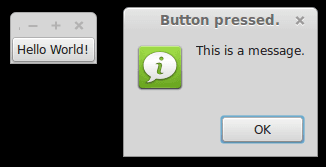 wxPython GUI
The official wxPython site has several screenshots and downloads for these platforms. wxPython is based on wxWidgets.
Install wxPython
First download and install WxPython, the Python bindings for wxWidgets.sudo apt-get install python-wxgtk2.8 python-wxtools wx2.8-doc wx2.8-examples wx2.8-headers wx2.8-i18nThen install a GUI creator called wxglade:
sudo apt-get install wxgladeUsing a GUI builder such as wxGlade will save you a lot of time, regardless of the GUI library you use. You can easily make complex graphical interfaces because you can simply drag and drop.
Creating our first GUI with Python and wxWidgets:
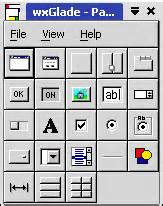
Start wxglade. You will see its user interface:
 wxglade
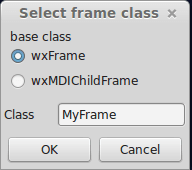
Press on tiny window on the top left, below the file icon.
 wxglade
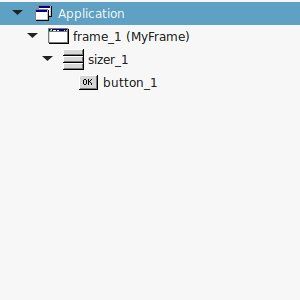
Press OK. An empty window will now appear. Press on the tiny [OK] button in the wxGlade panel and press on the frame. The button will now appear. Press on Application in the tree window.
 wxglade
Set the output file in the wxproperties window.
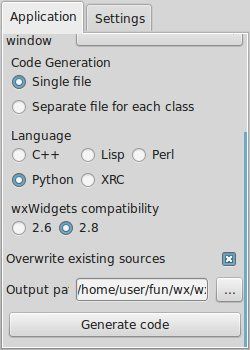 wxglade
If you look at the window note you can select multiple programming languages and two versions of wxWidgets. Select Python and wxWidgets 2.8. Finally press Generate code. (Do NOT name the file wx.py because the import needs wx, save it as window.py or something else).
Running wxglade code:
Run:python window.pyAnd a window with a button will appear. Pressing the button will not do anything. To start a function when pressing the button, we need to define a so called Callback. This can be as simple as:
def OnButton(self, Event, button_label):
        print "In OnButton:", button_label
Finally we bind the button to the callback function using:
self.button_1.Bind(wx.EVT_BUTTON, self.OnButton )Pressing the button will now write a message to the command line. Instead of the boring command line message, we want to show a message box. This can be done using this command:
wx.MessageBox( "This is a message.", "Button pressed.");wxPython example code
The full code below:#!/usr/bin/env python
# -*- coding: UTF-8 -*-
#
# generated by wxGlade 0.6.8 on Fri Jan 23 22:59:56 2015
#
import wx
# begin wxGlade: dependencies
import gettext
# end wxGlade
# begin wxGlade: extracode
# end wxGlade
class MyFrame(wx.Frame):
def __init__(self, *args, **kwds):
# begin wxGlade: MyFrame.__init__
kwds["style"] = wx.DEFAULT_FRAME_STYLE
wx.Frame.__init__(self, *args, **kwds)
self.button_1 = wx.Button(self, wx.ID_ANY, _("Hello World!"))
self.button_1.Bind(wx.EVT_BUTTON, self.OnButton )
self.__set_properties()
self.__do_layout()
# end wxGlade
def __set_properties(self):
# begin wxGlade: MyFrame.__set_properties
self.SetTitle(_("wxWidgets button example. pythonspot.com "))
# end wxGlade
def __do_layout(self):
# begin wxGlade: MyFrame.__do_layout
sizer_1 = wx.BoxSizer(wx.VERTICAL)
sizer_1.Add(self.button_1, 0, 0, 0)
self.SetSizer(sizer_1)
sizer_1.Fit(self)
self.Layout()
# end wxGlade
def OnButton(event, button_label):
wx.MessageBox( "This is a message.", "Button pressed.");
# end of class MyFrame
if __name__ == "__main__":
gettext.install("app") # replace with the appropriate catalog name
app = wx.PySimpleApp(0)
wx.InitAllImageHandlers()
frame_1 = MyFrame(None, wx.ID_ANY, "")
app.SetTopWindow(frame_1)
frame_1.Show()
app.MainLoop()