
PyQT5 color dialog
PyQt5 supports a color picker known as QColorDialog. This dialog is a typical dialog that you would see in a paint or graphics program.
To get a color from PyQt5 dialog simply call:
color = QColorDialog.getColor()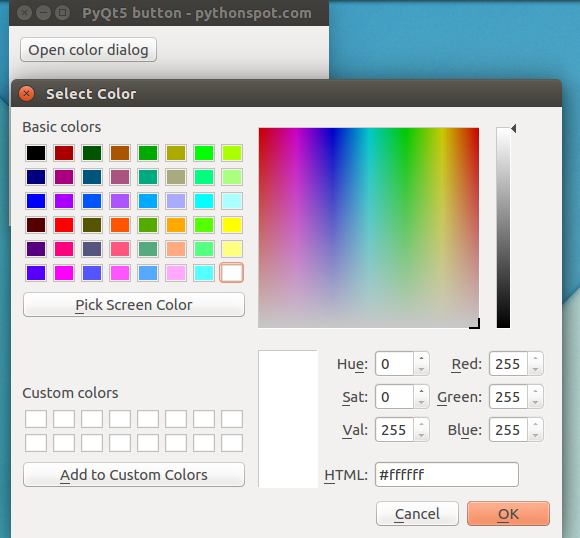 A color dialog using PyQt5
PyQt5 color dialog example The example below opens a QColorDialog after clicking the button, and returns the selected color.
import sys
from PyQt5.QtWidgets import QApplication, QWidget, QPushButton, QColorDialog
from PyQt5.QtGui import QIcon
from PyQt5.QtCore import pyqtSlot
from PyQt5.QtGui import QColor
class App(QWidget):
def __init__(self):
        super().__init__()
        self.title = 'PyQt5 color dialog - pythonspot.com'
        self.left = 10
        self.top = 10
        self.width = 320
        self.height = 200
        self.initUI()

    def initUI(self):
        self.setWindowTitle(self.title)
        self.setGeometry(self.left, self.top, self.width, self.height)
button = QPushButton('Open color dialog', self)
        button.setToolTip('Opens color dialog')
        button.move(10,10)
        button.clicked.connect(self.on_click)

        self.show()
@pyqtSlot()
    def on_click(self):
        openColorDialog(self)
def openColorDialog(self):
        color = QColorDialog.getColor()
if color.isValid():
            print(color.name())
if __name__ == '__main__':
    app = QApplication(sys.argv)
    ex = App()
    sys.exit(app.exec_())