
PyQt5 grid layout
PyQt5 supports a grid layout, which is named QGridLayout. Widgets can be added to a grid in both the horizontal and vertical direction. An example of a grid layout with widgets is shown below:
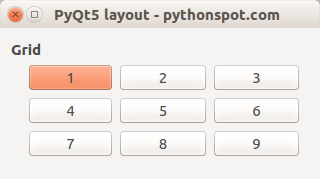
PyQt5 grid layout example: The example below creates the grid:
import sys
from PyQt5.QtWidgets import QApplication, QWidget, QPushButton, QHBoxLayout, QGroupBox, QDialog, QVBoxLayout, QGridLayout
from PyQt5.QtGui import QIcon
from PyQt5.QtCore import pyqtSlot
class App(QDialog):
def __init__(self):
        super().__init__()
        self.title = 'PyQt5 layout - pythonspot.com'
        self.left = 10
        self.top = 10
        self.width = 320
        self.height = 100
        self.initUI()

    def initUI(self):
        self.setWindowTitle(self.title)
        self.setGeometry(self.left, self.top, self.width, self.height)

        self.createGridLayout()

        windowLayout = QVBoxLayout()
        windowLayout.addWidget(self.horizontalGroupBox)
        self.setLayout(windowLayout)

        self.show()

    def createGridLayout(self):
        self.horizontalGroupBox = QGroupBox("Grid")
        layout = QGridLayout()
        layout.setColumnStretch(1, 4)
        layout.setColumnStretch(2, 4)

        layout.addWidget(QPushButton('1'),0,0)
        layout.addWidget(QPushButton('2'),0,1)
        layout.addWidget(QPushButton('3'),0,2)
        layout.addWidget(QPushButton('4'),1,0)
        layout.addWidget(QPushButton('5'),1,1)
        layout.addWidget(QPushButton('6'),1,2)
        layout.addWidget(QPushButton('7'),2,0)
        layout.addWidget(QPushButton('8'),2,1)
        layout.addWidget(QPushButton('9'),2,2)

        self.horizontalGroupBox.setLayout(layout)
if __name__ == '__main__':
    app = QApplication(sys.argv)
    ex = App()
    sys.exit(app.exec_())
Explanation
We import the gridlayout and others with:
from PyQt5.QtWidgets import QApplication, QWidget, QPushButton, QHBoxLayout, QGroupBox, QDialog, QVBoxLayout, QGridLayoutIn the method createGridLayout() we create the grid with a title and set the size.
def createGridLayout(self):
    self.horizontalGroupBox = QGroupBox("Grid")
    layout = QGridLayout()
    layout.setColumnStretch(1, 4)
    layout.setColumnStretch(2, 4)
Widgets are added using
layout.addWidget(Widget,X,Y)Finally we set the layout.