
PyQt5 tabs
In this article you will learn to use tabs with PyQt5. We'll show the full code first, then explain. PyQt5 has a widget to create tabs known as QTabWidget. The QTabWidget can contain tabs (QWidgets), which have widgets on them such as labels, buttons, images etcetera.
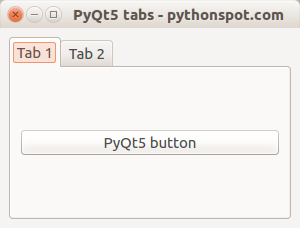
PyQt5 tabs example Full PyQt5 tabs example:
import sys
from PyQt5.QtWidgets import QMainWindow, QApplication, QPushButton, QWidget, QAction, QTabWidget,QVBoxLayout
from PyQt5.QtGui import QIcon
from PyQt5.QtCore import pyqtSlot
class App(QMainWindow):
def __init__(self):
        super().__init__()
        self.title = 'PyQt5 tabs - pythonspot.com'
        self.left = 0
        self.top = 0
        self.width = 300
        self.height = 200
        self.setWindowTitle(self.title)
        self.setGeometry(self.left, self.top, self.width, self.height)

        self.table_widget = MyTableWidget(self)
        self.setCentralWidget(self.table_widget)

        self.show()

class MyTableWidget(QWidget):

    def __init__(self, parent):
        super(QWidget, self).__init__(parent)
        self.layout = QVBoxLayout(self)

        # Initialize tab screen
        self.tabs = QTabWidget()
        self.tab1 = QWidget()
        self.tab2 = QWidget()
        self.tabs.resize(300,200)

        # Add tabs
        self.tabs.addTab(self.tab1,"Tab 1")
        self.tabs.addTab(self.tab2,"Tab 2")

        # Create first tab
        self.tab1.layout = QVBoxLayout(self)
        self.pushButton1 = QPushButton("PyQt5 button")
        self.tab1.layout.addWidget(self.pushButton1)
        self.tab1.setLayout(self.tab1.layout)

        # Add tabs to widget
        self.layout.addWidget(self.tabs)
        self.setLayout(self.layout)

    @pyqtSlot()
    def on_click(self):
        print("\n")
        for currentQTableWidgetItem in self.tableWidget.selectedItems():
            print(currentQTableWidgetItem.row(), currentQTableWidgetItem.column(), currentQTableWidgetItem.text())
if __name__ == '__main__':
    app = QApplication(sys.argv)
    ex = App()
    sys.exit(app.exec_())
Explanation:
To add a table to a window, we create a new class:
class MyTableWidget(QWidget)We initialize the tab screen by creating a QTabWidget and two QWidgets for tabs.
self.tabs = QTabWidget()
self.tab1 = QWidget()
self.tab2 = QWidget()
self.tabs.resize(300,200)
We then add these tabs to the tab widget:
self.tabs.addTab(self.tab1,"Tab 1")
self.tabs.addTab(self.tab2,"Tab 2")
The contents of a tab are created using:
self.tab1.layout = QVBoxLayout(self)
self.pushButton1 = QPushButton("PyQt5 button")
self.tab1.layout.addWidget(self.pushButton1)
self.tab1.setLayout(self.tab1.layout)
Finally we add the tabs to the widget:
self.layout.addWidget(self.tabs)
self.setLayout(self.layout)
don't forget the to add your custom tab widget to the window:
self.table_widget = MyTableWidget(self)
self.setCentralWidget(self.table_widget)