Category: pro
Python hosting: Host, run, and code Python in the cloud!
Support Vector Machine
A common task in Machine Learning is to classify data. Given a data point cloud, sometimes linear classification is impossible. In those cases we can use a Support Vector Machine instead, but an SVM can also work with linear separation.
Related Courses
Dataset
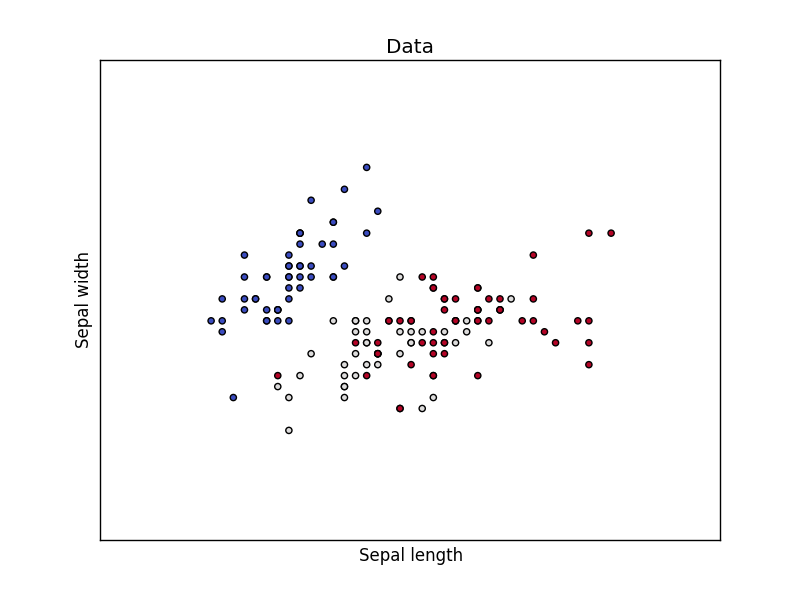
We loading the Iris data, which we’ll later use to classify. This set has many features, but we’ll use only the first two features:
- sepal length
- sepal width
The code below will load the data points on the decision surface.
import matplotlib matplotlib.use('GTKAgg') import numpy as np import matplotlib.pyplot as plt from sklearn import svm, datasets # import some data to play with iris = datasets.load_iris() X = iris.data[:, :2] # we only take the first two features. y = iris.target h = .02 # step size in the mesh # create a mesh to plot in x_min, x_max = X[:, 0].min() - 1, X[:, 0].max() + 1 y_min, y_max = X[:, 1].min() - 1, X[:, 1].max() + 1 xx, yy = np.meshgrid(np.arange(x_min, x_max, h), np.arange(y_min, y_max, h)) # Plot also the training points plt.scatter(X[:, 0], X[:, 1], c=y, cmap=plt.cm.coolwarm) plt.xlabel('Sepal length') plt.ylabel('Sepal width') plt.xlim(xx.min(), xx.max()) plt.ylim(yy.min(), yy.max()) plt.xticks(()) plt.yticks(()) plt.title('Data') plt.show() |
Support Vector Machine Example
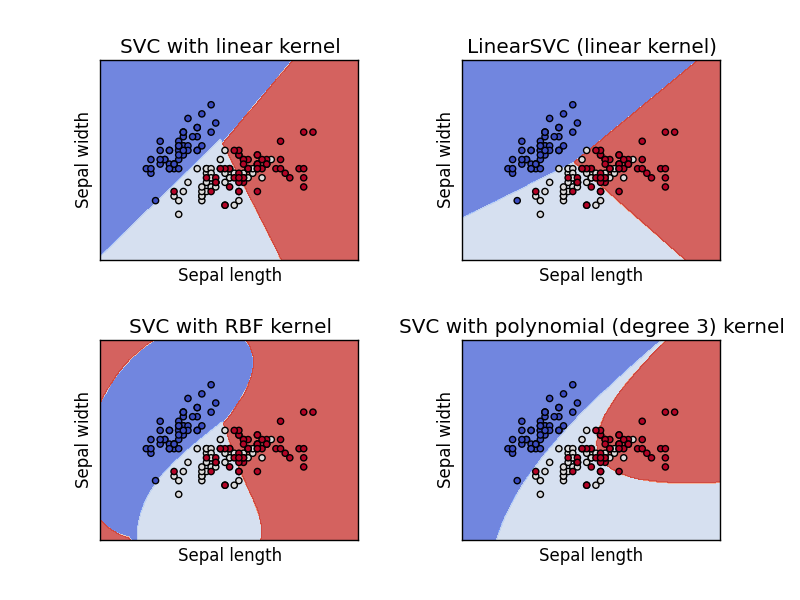
Separating two point clouds is easy with a linear line, but what if they cannot be separated by a linear line?
In that case we can use a kernel, a kernel is a function that a domain-expert provides to a machine learning algorithm (a kernel is not limited to an svm).
The example below shows SVM decision surface using 4 different kernels, of which two are linear kernels.
import matplotlib matplotlib.use('GTKAgg') import numpy as np import matplotlib.pyplot as plt from sklearn import svm, datasets # import some data to play with iris = datasets.load_iris() X = iris.data[:, :2] # we only take the first two features. We could # avoid this ugly slicing by using a two-dim dataset y = iris.target h = .02 # step size in the mesh # we create an instance of SVM and fit out data. We do not scale our # data since we want to plot the support vectors C = 1.0 # SVM regularization parameter svc = svm.SVC(kernel='linear', C=C).fit(X, y) rbf_svc = svm.SVC(kernel='rbf', gamma=0.7, C=C).fit(X, y) poly_svc = svm.SVC(kernel='poly', degree=3, C=C).fit(X, y) lin_svc = svm.LinearSVC(C=C).fit(X, y) # create a mesh to plot in x_min, x_max = X[:, 0].min() - 1, X[:, 0].max() + 1 y_min, y_max = X[:, 1].min() - 1, X[:, 1].max() + 1 xx, yy = np.meshgrid(np.arange(x_min, x_max, h), np.arange(y_min, y_max, h)) # title for the plots titles = ['SVC with linear kernel', 'LinearSVC (linear kernel)', 'SVC with RBF kernel', 'SVC with polynomial (degree 3) kernel'] for i, clf in enumerate((svc, lin_svc, rbf_svc, poly_svc)): # Plot the decision boundary. For that, we will assign a color to each # point in the mesh [x_min, x_max]x[y_min, y_max]. plt.subplot(2, 2, i + 1) plt.subplots_adjust(wspace=0.4, hspace=0.4) Z = clf.predict(np.c_[xx.ravel(), yy.ravel()]) # Put the result into a color plot Z = Z.reshape(xx.shape) plt.contourf(xx, yy, Z, cmap=plt.cm.coolwarm, alpha=0.8) # Plot also the training points plt.scatter(X[:, 0], X[:, 1], c=y, cmap=plt.cm.coolwarm) plt.xlabel('Sepal length') plt.ylabel('Sepal width') plt.xlim(xx.min(), xx.max()) plt.ylim(yy.min(), yy.max()) plt.xticks(()) plt.yticks(()) plt.title(titles[i]) plt.show() |
Urllib Tutorial Python 3
Websites can be accessed using the urllib module. You can use the urllib module to interact with any website in the world, no matter if you want to get data, post data or parse data.
python urllib
Download website
We can download a webpages HTML using 3 lines of code:
import urllib.request html = urllib.request.urlopen('https://arstechnica.com').read() print(html) |
The variable html will contain the webpage data in html formatting. Traditionally a web-browser like Google Chrome visualizes this data.
Web browser
A web-browsers sends their name and version along with a request, this is known as the user-agent. Python can mimic this using the code below. The User-Agent string contains the name of the web browser and version number:
import urllib.request headers = {} headers['User-Agent'] = "Mozilla/5.0 (X11; Ubuntu; Linux i686; rv:48.0) Gecko/20100101 Firefox/48.0" req = urllib.request.Request('https://arstechnica.com', headers = headers) html = urllib.request.urlopen(req).read() print(html) |
Parsing data
Given a web-page data, we want to extract interesting information. You could use the BeautifulSoup module to parse the returned HTML data.
You can use the BeautifulSoup module to:
There are several modules that try to achieve the same as BeautifulSoup: PyQuery and HTMLParser, you can read more about them here.
Posting data
The code below posts data to a server:
import urllib.request data = urllib.urlencode({'s': 'Post variable'}) h = httplib.HTTPConnection('https://server:80/') headers = {"Content-type": "application/x-www-form-urlencoded", "Accept": "text/plain"} h.request('POST', 'webpage.php', data, headers) r = h.getresponse() print(r.read()) |
Mathematische Operationen
Sie können den Python-Interpreter als Taschenrechner verwenden. Dazu starten Sie einfach Python ohne IDE und Dateinamen. Beispiel:
  Python 2.7.6 (Standard, 22. Juni 2015, 17:58:13)
[GCC 4.8.2] auf linux2
Geben Sie "help", "copyright", "Credits" oder "Lizenz" für weitere Informationen.
>>> 18 * 17
306
>>> 2 ** 4
16
>>>
Mathematische Funktionen
Python unterstützt eine Vielzahl von mathematischen Funktionen.
| Funktion | Gibt | Beispiel | |
|---|---|---|---|
| Abs(x) | Der Absolute Wert von x zurückgibt. |
|
|
| CMP(x,y) |
Gibt-1 zurück, wenn X < y Gibt 0 zurück, wenn x gleich y Gibt 1 zurück, wenn X > y. |
|
|
| EXP(x) | Kehrt die exponentielle x |
|
|
| Log(x) | Den natürlichen Logarithmus von x |
|
|
| log10(x) | Der Logarithmus Base-10 x |
|
|
| Pow(x,y) | Das Ergebnis von X ** y |
|
|
| sqrt(x) | Die Quadratwurzel von x |
|
Matplotlib Histogram
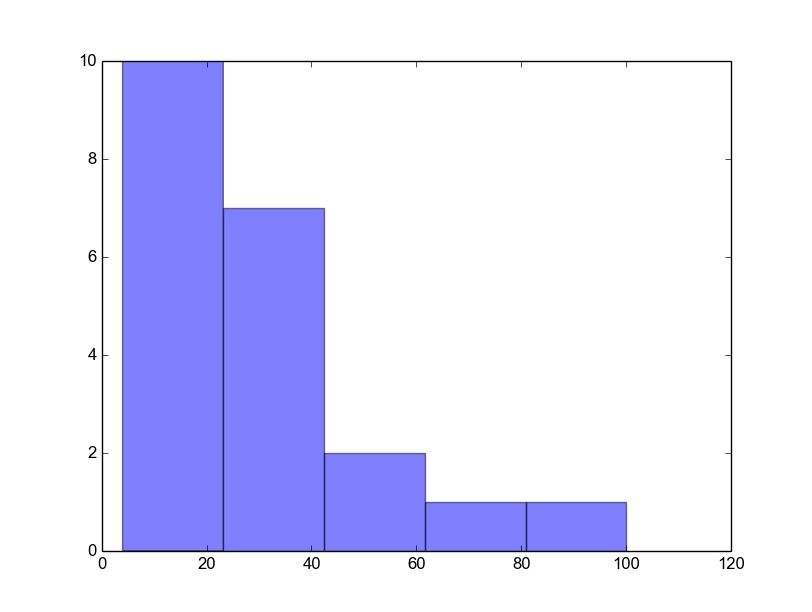
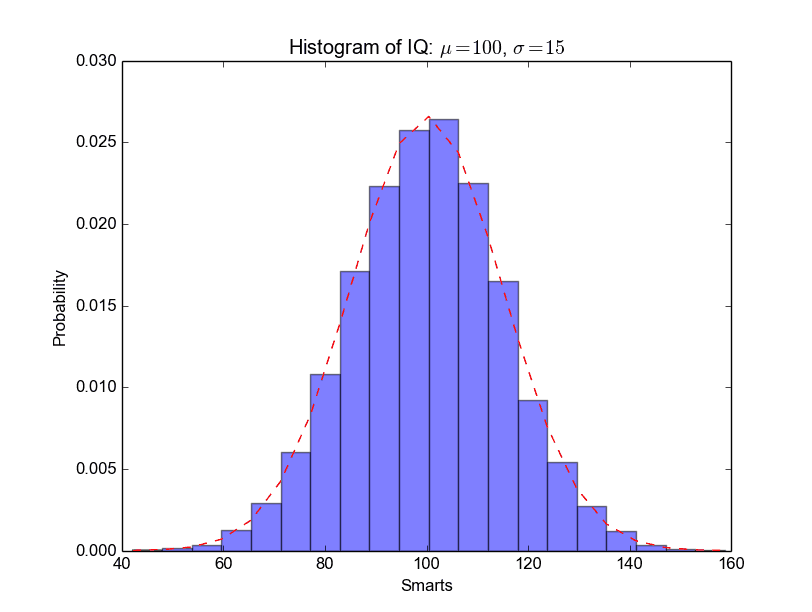
Matplotlib can be used to create histograms. A histogram shows the frequency on the vertical axis and the horizontal axis is another dimension. Usually it has bins, where every bin has a minimum and maximum value. Each bin also has a frequency between x and infinite.
Related course
Matplotlib histogram example
Below we show the most minimal Matplotlib histogram:
import numpy as np import matplotlib.mlab as mlab import matplotlib.pyplot as plt x = [21,22,23,4,5,6,77,8,9,10,31,32,33,34,35,36,37,18,49,50,100] num_bins = 5 n, bins, patches = plt.hist(x, num_bins, facecolor='blue', alpha=0.5) plt.show() |
Output:
A complete matplotlib python histogram
Many things can be added to a histogram such as a fit line, labels and so on. The code below creates a more advanced histogram.
#!/usr/bin/env python import numpy as np import matplotlib.mlab as mlab import matplotlib.pyplot as plt # example data mu = 100 # mean of distribution sigma = 15 # standard deviation of distribution x = mu + sigma * np.random.randn(10000) num_bins = 20 # the histogram of the data n, bins, patches = plt.hist(x, num_bins, normed=1, facecolor='blue', alpha=0.5) # add a 'best fit' line y = mlab.normpdf(bins, mu, sigma) plt.plot(bins, y, 'r--') plt.xlabel('Smarts') plt.ylabel('Probability') plt.title(r'Histogram of IQ: $\mu=100$, $\sigma=15$') # Tweak spacing to prevent clipping of ylabel plt.subplots_adjust(left=0.15) plt.show() |
Output:
tkinter askquestion dialog
Tkinter supports showing a message box. The implementation you need depends on your Python version. To test your version:
python -- version |
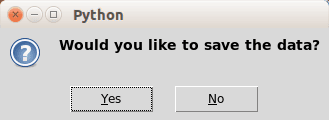
Tkinter question dialog
Tkinter can be used to ask the users questions.
Python 2.x
The Python 2.x version:
import Tkinter import tkMessageBox result = tkMessageBox.askyesno("Python","Would you like to save the data?") print result |
Python 3
The Python 3.x version:
import tkinter from tkinter import messagebox messagebox.askokcancel("Python","Would you like to save the data?") |
Result:
Tkinter message boxes
This code will open some Tkinter question boxes:
Python 2.7
The Python 2.x version:
import Tkinter import tkMessageBox # Confirmation messagebox tkMessageBox.askokcancel("Title","The application will be closed") # Option messagebox tkMessageBox.askyesno("Title","Do you want to save?") # Try again messagebox tkMessageBox.askretrycancel("Title","Installation failed, try again?") |
Python 3
The Python 3.x version:
import tkinter from tkinter import messagebox messagebox.askokcancel("Title","The application will be closed") messagebox.askyesno("Title","Do you want to save?") messagebox.askretrycancel("Title","Installation failed, try again?") |
Result:

Matplotlib Line chart
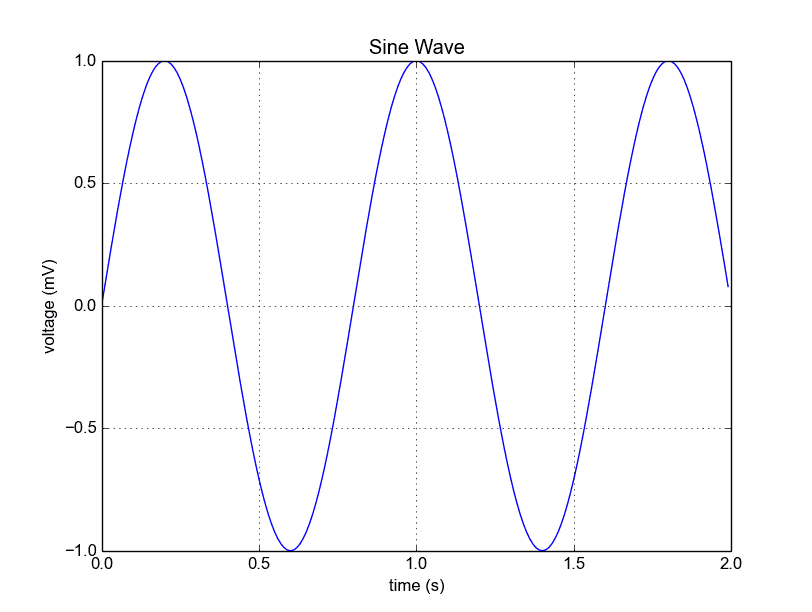
A line chart can be created using the Matplotlib plot() function. While we can just plot a line, we are not limited to that. We can explicitly define the grid, the x and y axis scale and labels, title and display options.
Related course:
Line chart example
The example below will create a line chart.
from pylab import * t = arange(0.0, 2.0, 0.01) s = sin(2.5*pi*t) plot(t, s) xlabel('time (s)') ylabel('voltage (mV)') title('Sine Wave') grid(True) show() |
Output:
The lines:
from pylab import * t = arange(0.0, 2.0, 0.01) s = sin(2.5*pi*t) |
simply define the data to be plotted.
from pylab import * t = arange(0.0, 2.0, 0.01) s = sin(2.5*pi*t) plot(t, s) show() |
plots the chart. The other statements are very straightforward: statements xlabel() sets the x-axis text, ylabel() sets the y-axis text, title() sets the chart title and grid(True) simply turns on the grid.
If you want to save the plot to the disk, call the statement:
savefig("line_chart.png") |
Plot a custom Line Chart
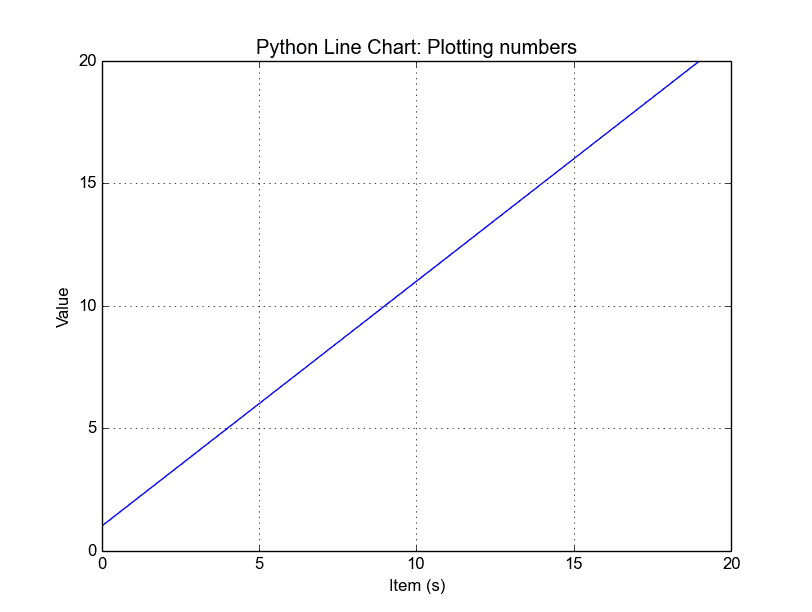
If you want to plot using an array (list), you can execute this script:
from pylab import * t = arange(0.0, 20.0, 1) s = [1,2,3,4,5,6,7,8,9,10,11,12,13,14,15,16,17,18,19,20] plot(t, s) xlabel('Item (s)') ylabel('Value') title('Python Line Chart: Plotting numbers') grid(True) show() |
The statement:
t = arange(0.0, 20.0, 1) |
defines start from 0, plot 20 items (length of our array) with steps of 1.
Output:
Multiple plots
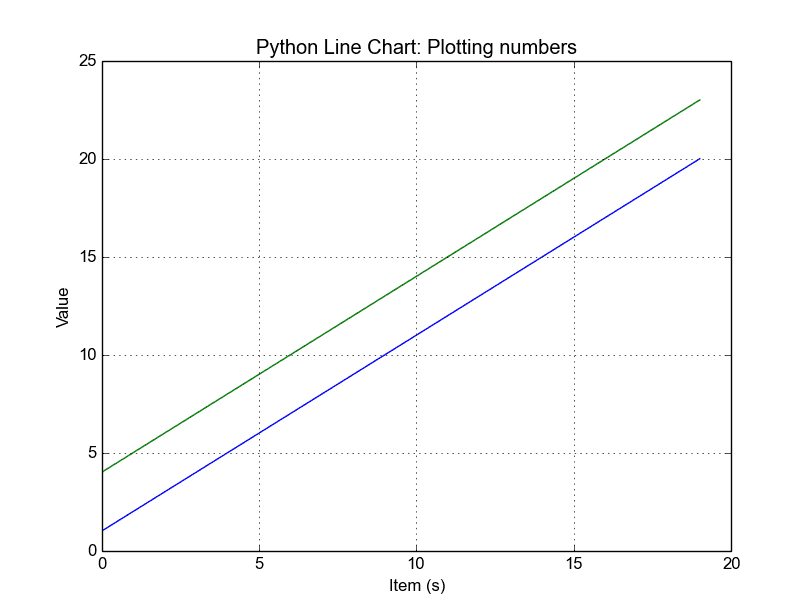
If you want to plot multiple lines in one chart, simply call the plot() function multiple times. An example:
from pylab import * t = arange(0.0, 20.0, 1) s = [1,2,3,4,5,6,7,8,9,10,11,12,13,14,15,16,17,18,19,20] s2 = [4,5,6,7,8,9,10,11,12,13,14,15,16,17,18,19,20,21,22,23] plot(t, s) plot(t, s2) xlabel('Item (s)') ylabel('Value') title('Python Line Chart: Plotting numbers') grid(True) show() |
Output:
In case you want to plot them in different views in the same window you can use this:
import matplotlib.pyplot as plt from pylab import * t = arange(0.0, 20.0, 1) s = [1,2,3,4,5,6,7,8,9,10,11,12,13,14,15,16,17,18,19,20] s2 = [4,5,6,7,8,9,10,11,12,13,14,15,16,17,18,19,20,21,22,23] plt.subplot(2, 1, 1) plt.plot(t, s) plt.ylabel('Value') plt.title('First chart') plt.grid(True) plt.subplot(2, 1, 2) plt.plot(t, s2) plt.xlabel('Item (s)') plt.ylabel('Value') plt.title('Second chart') plt.grid(True) plt.show() |
Output:
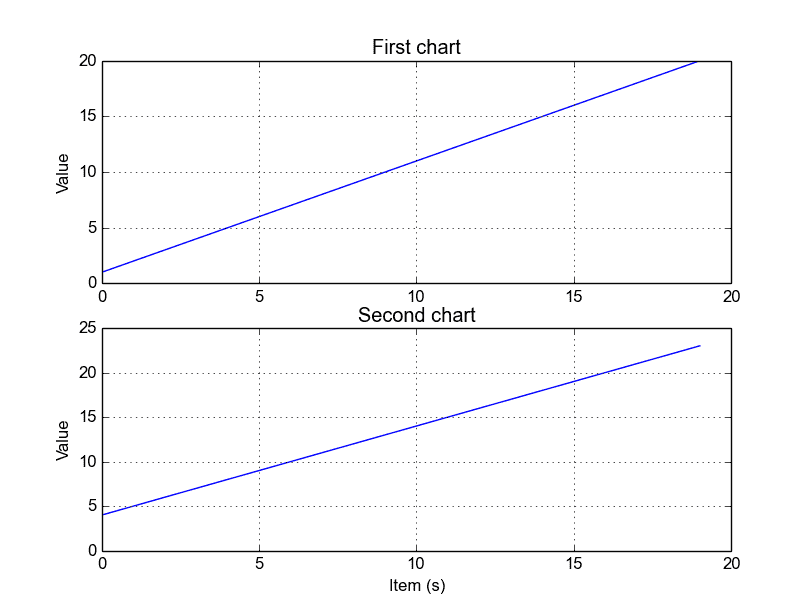
The plt.subplot() statement is key here. The subplot() command specifies numrows, numcols and fignum.
Styling the plot
If you want thick lines or set the color, use:
plot(t, s, color="red", linewidth=2.5, linestyle="-") |